Accessibility
More contrast, dark mode & keyboard control
Erdikon adapts its contrast and appearance to your needs and works with the keyboard. It takes many settings directly from your device.
Free for up to two users. No credit card required.
Increasing the contrast
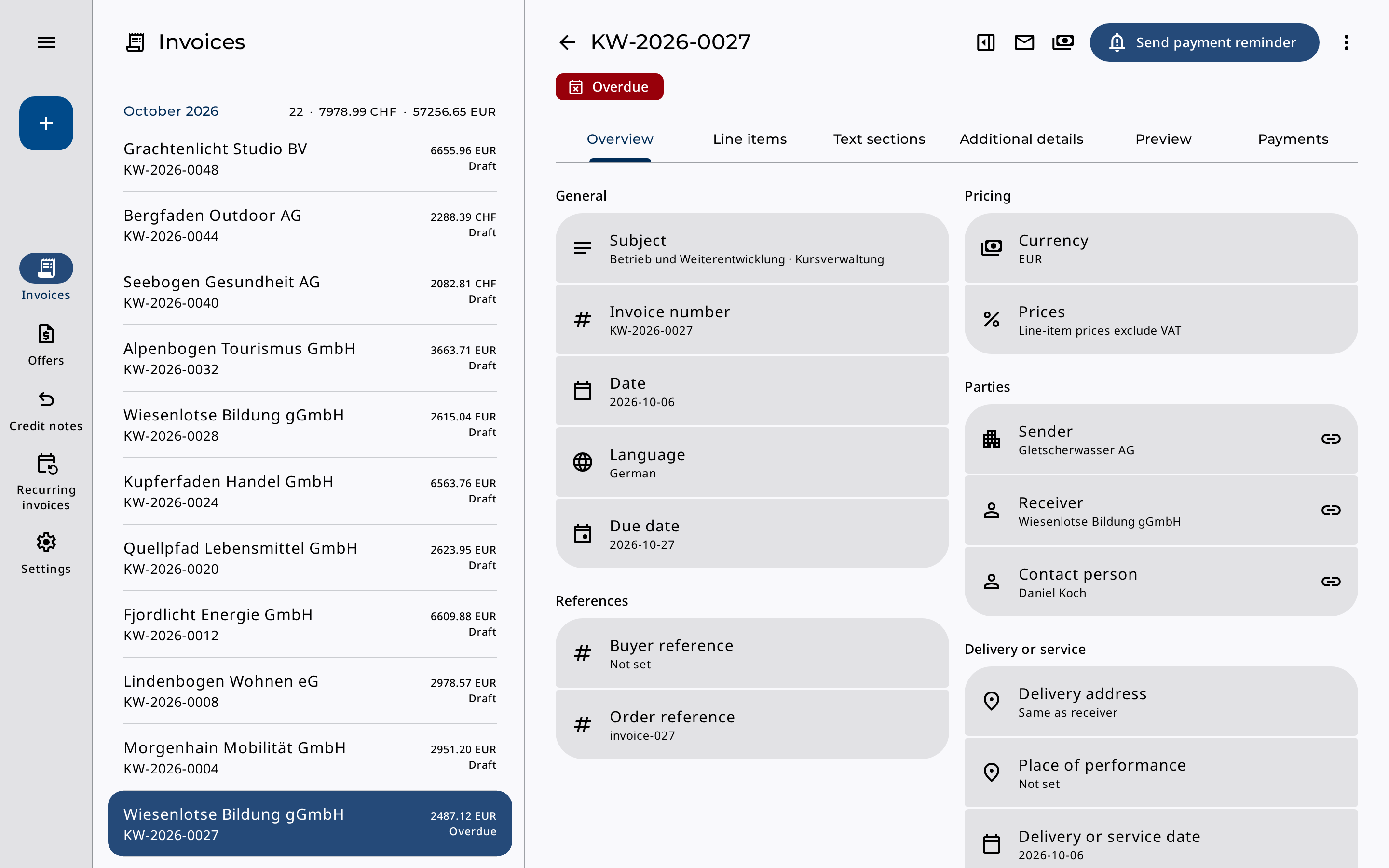
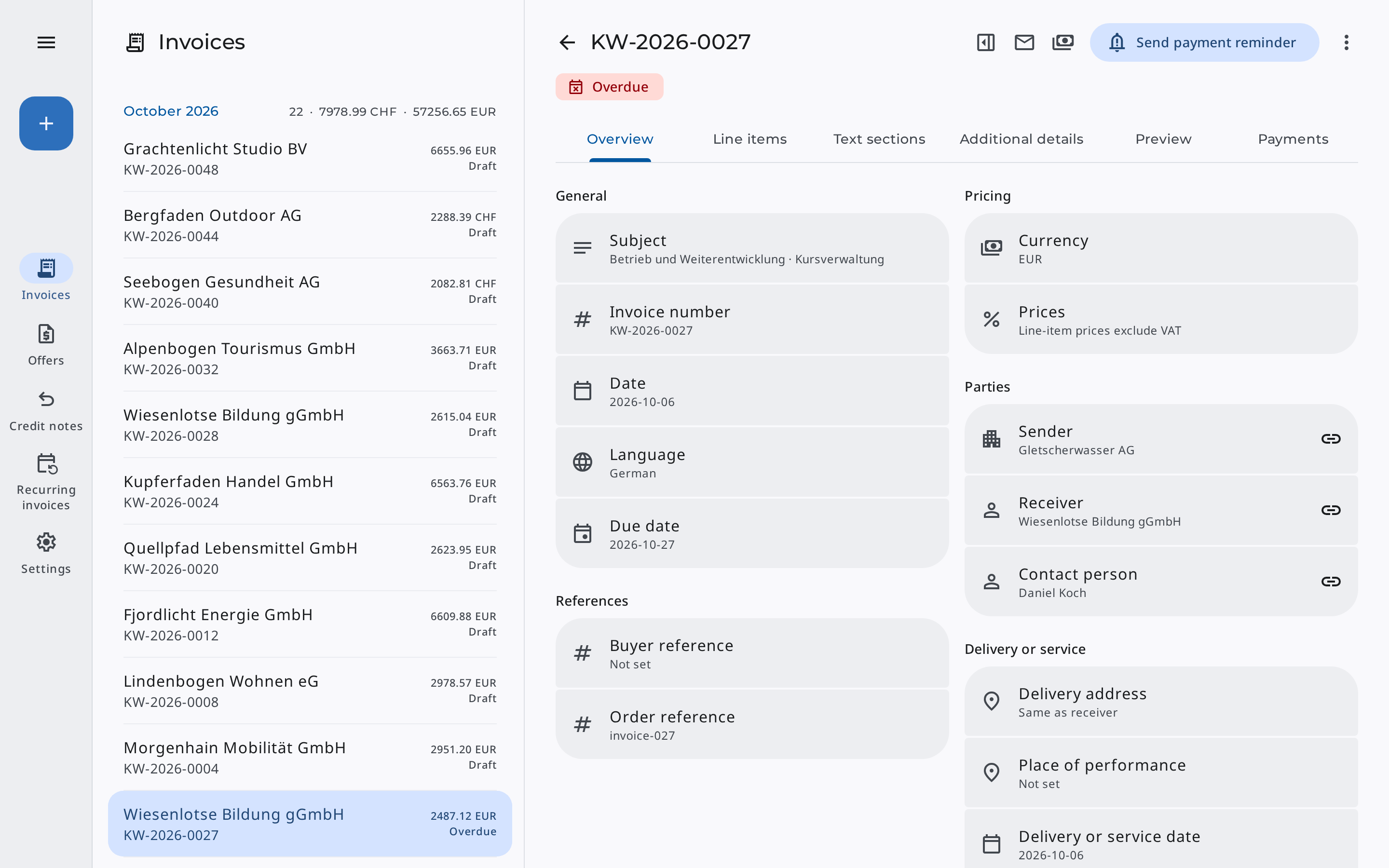
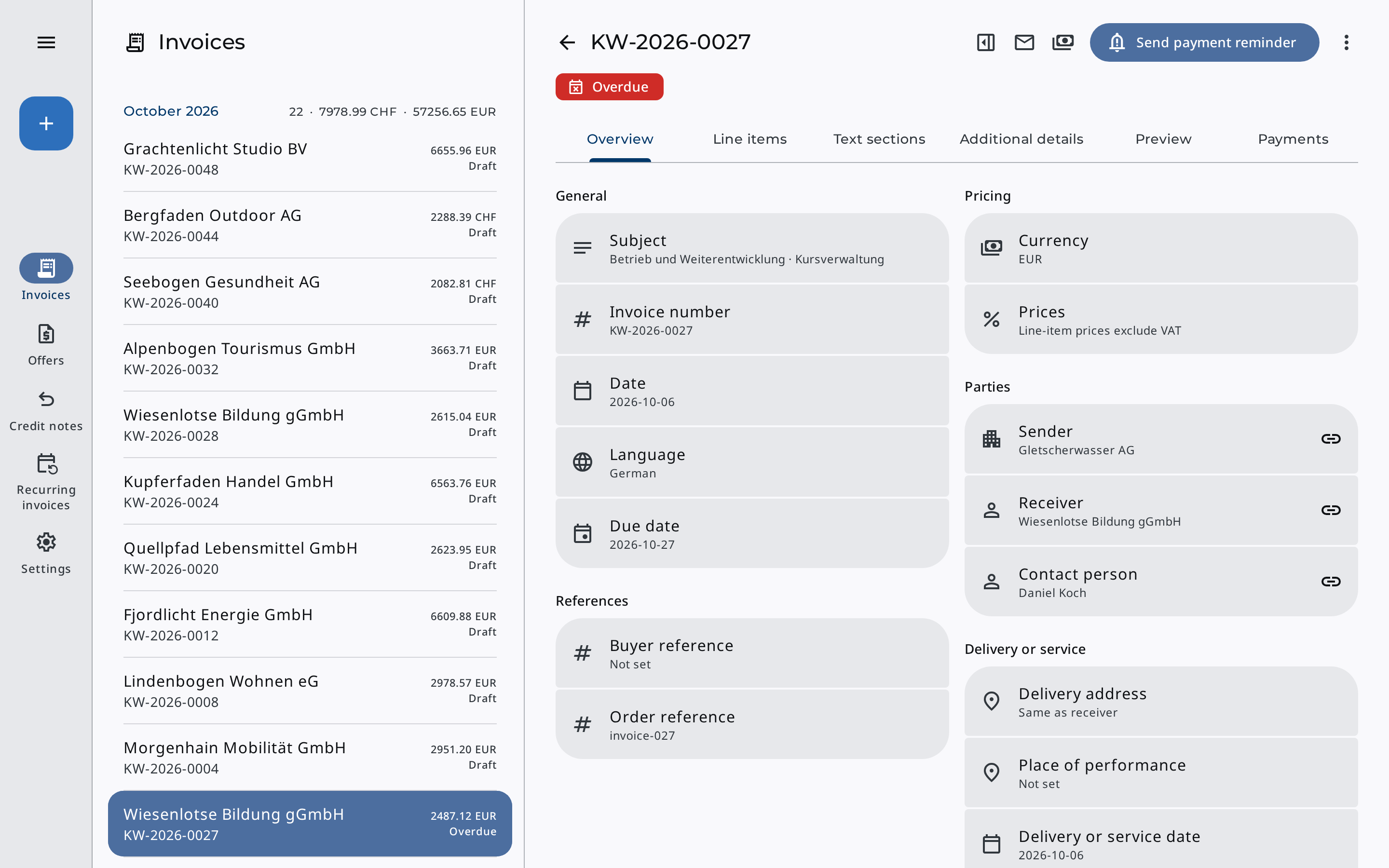
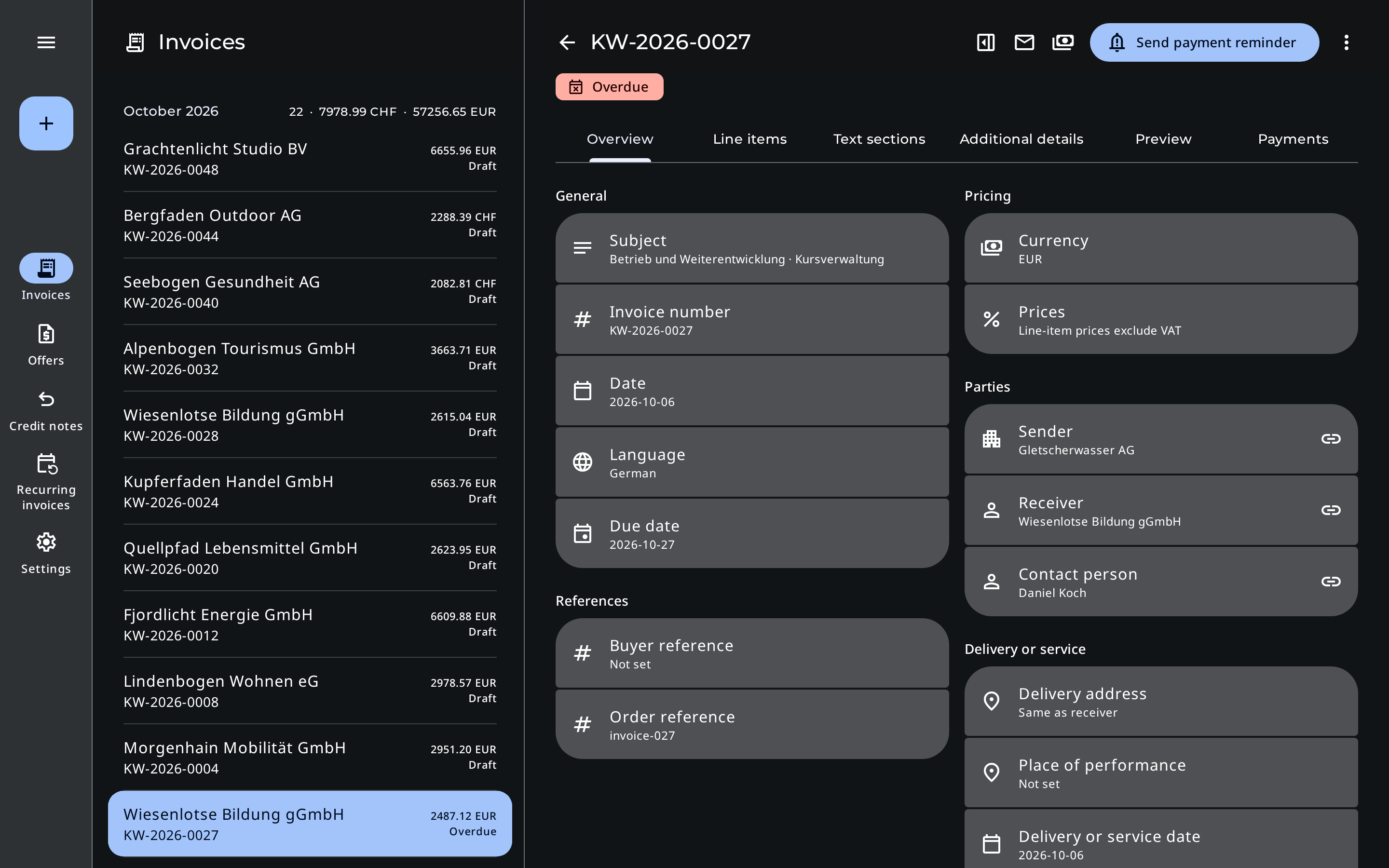
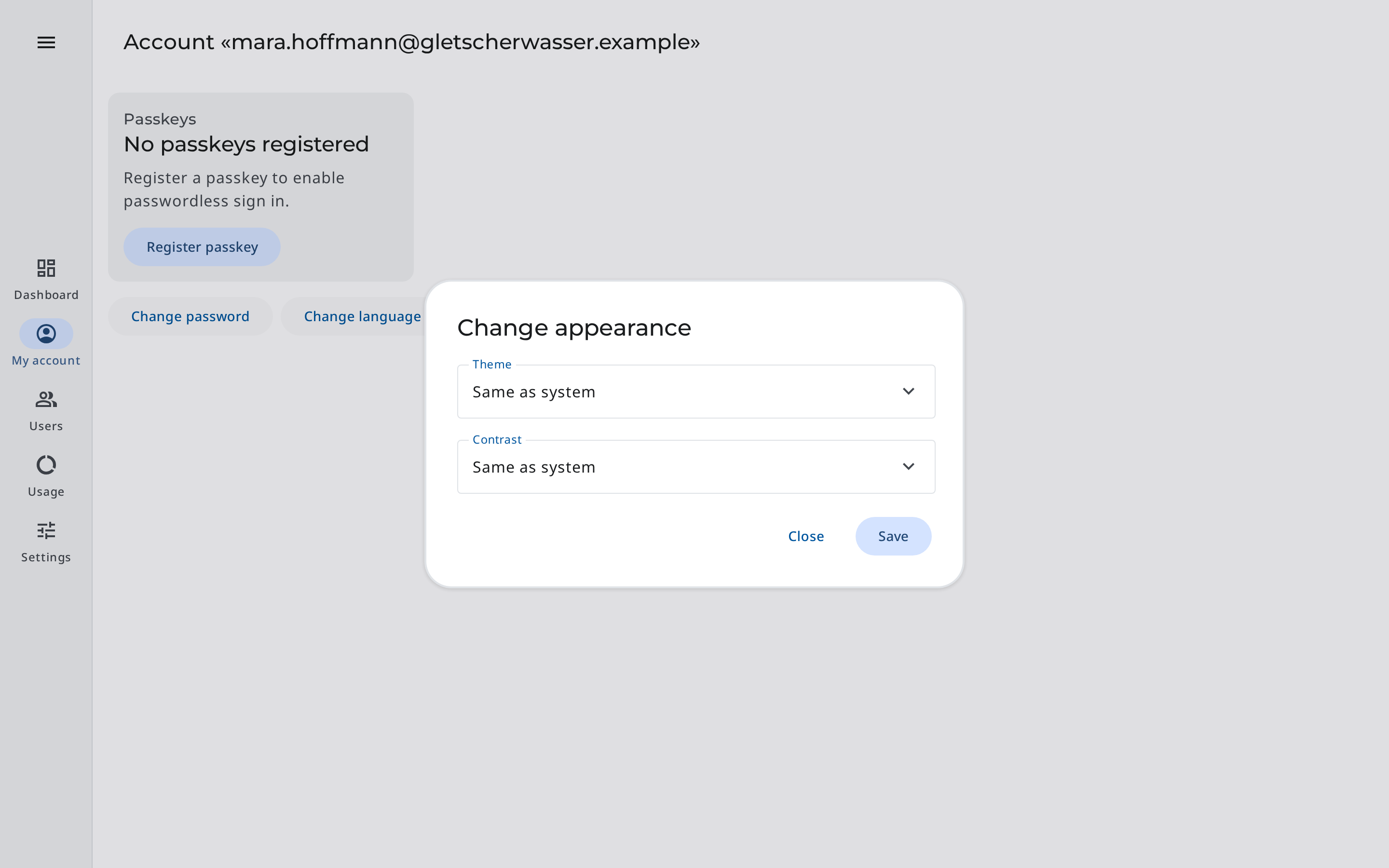
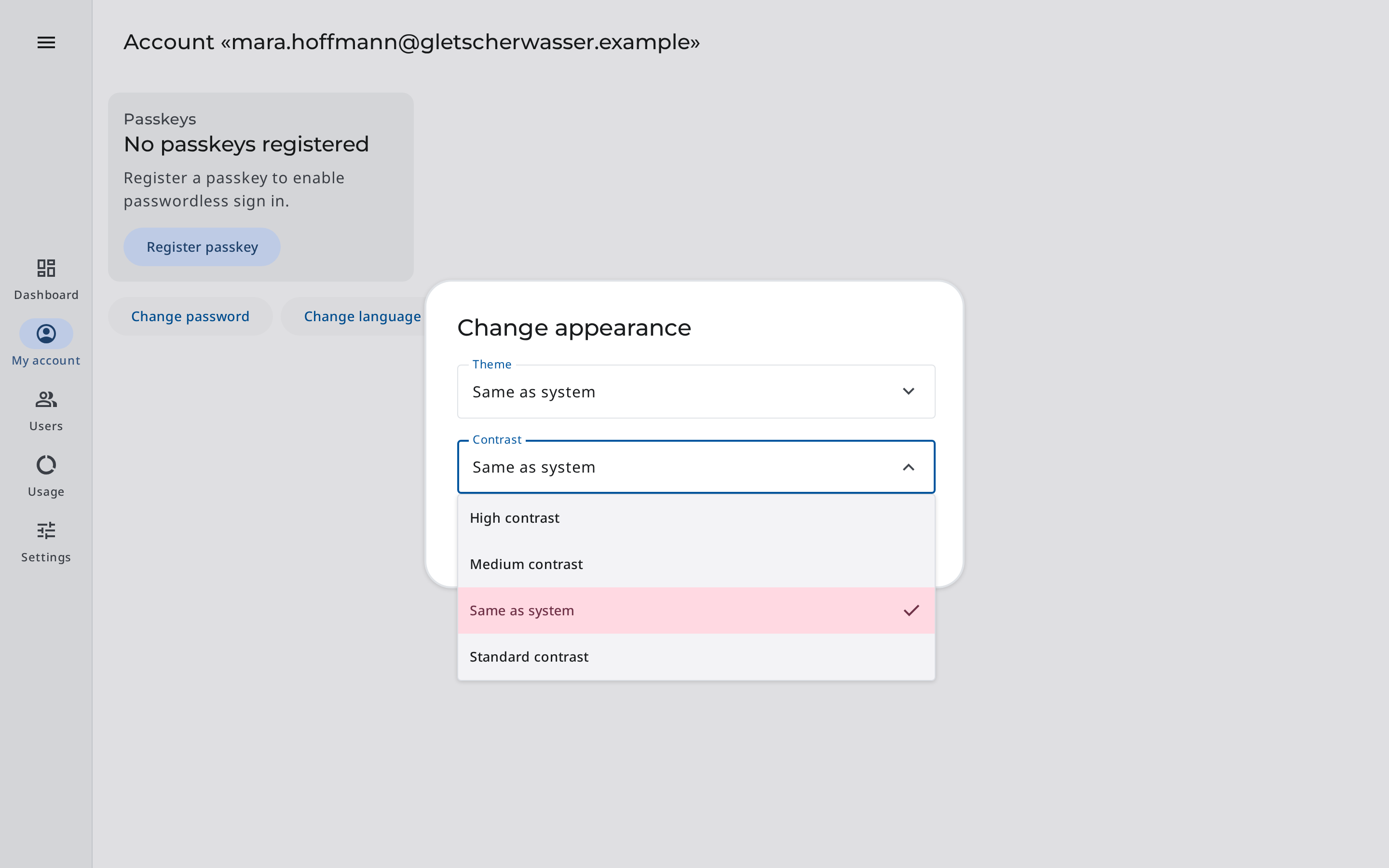
If text, buttons, or status labels look too faint to you, choose a higher «Contrast» under «My account» › «Change appearance». Besides «Standard contrast», you can choose «Medium contrast» and «High contrast», in both the light and the dark theme.
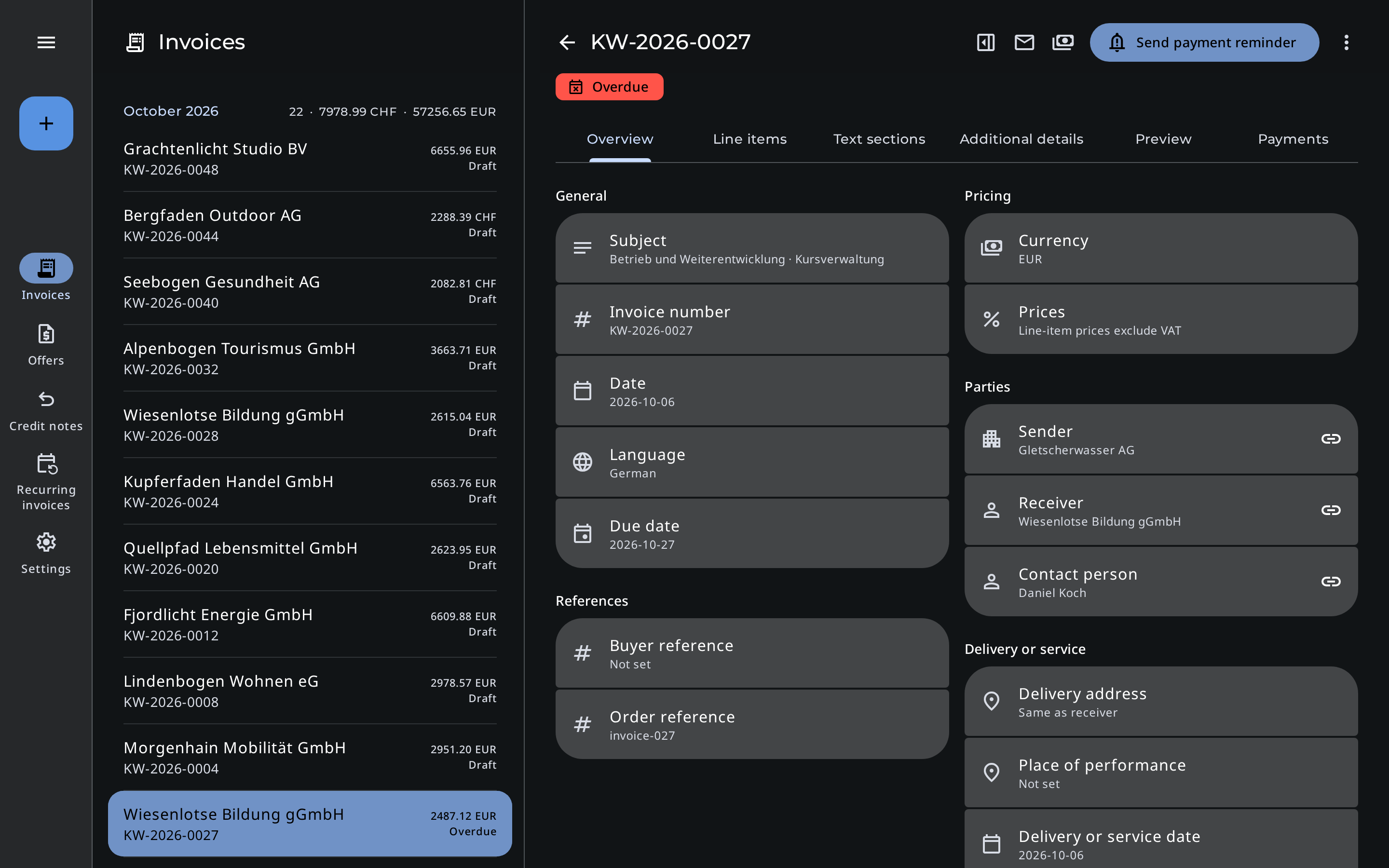
At medium and high contrast, colored areas such as buttons, status labels, and the selected item stand out from the background at a ratio of at least 3:1. If your operating system asks for more contrast, Erdikon uses medium contrast on its own.
Contrast in Erdikon
- Three contrast levels
- In the light & dark theme
- System setting for more contrast
- In all applications
Light, dark, or same as system
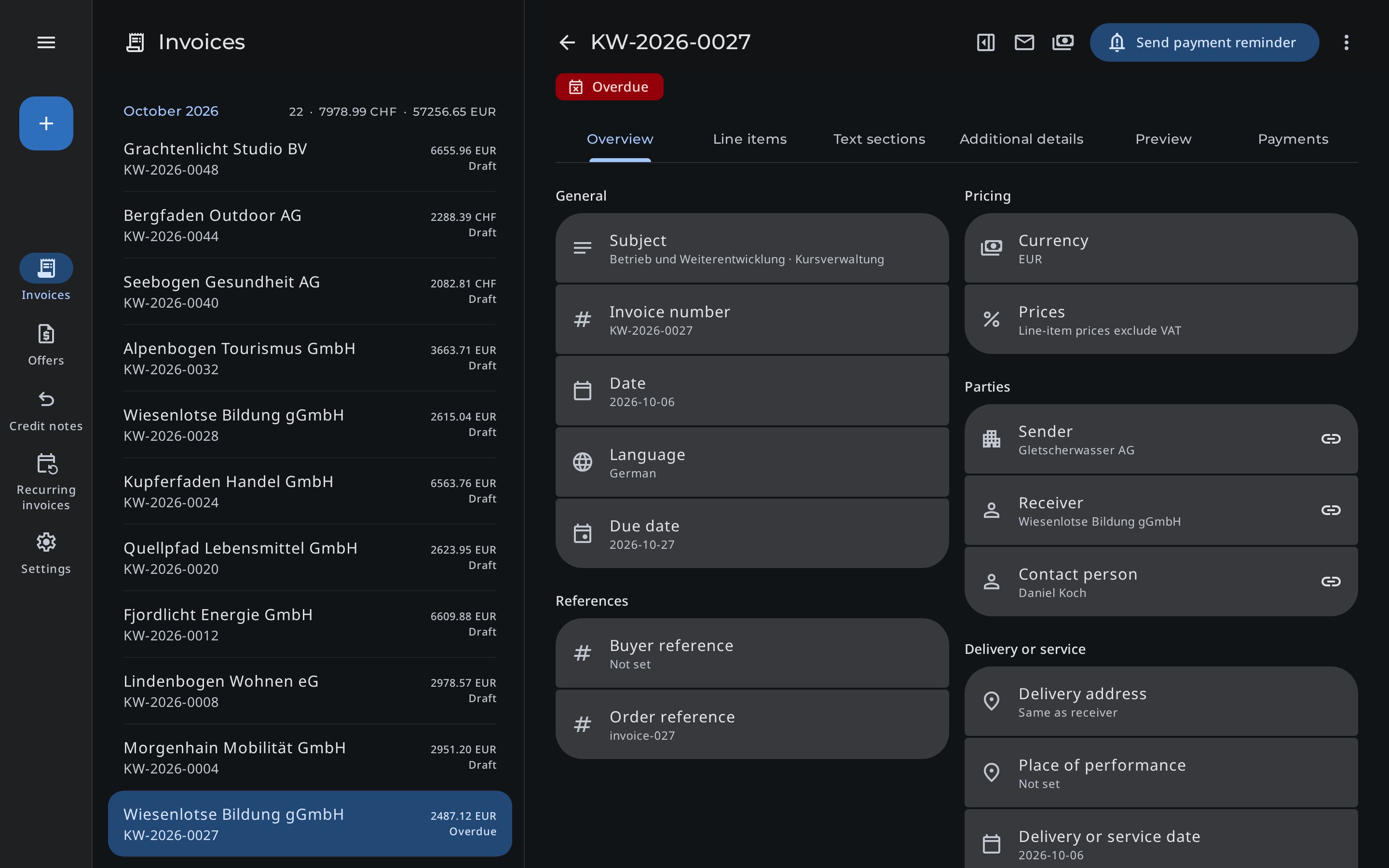
You choose the «Theme» in the same dialog. Erdikon saves both settings in your account, and every team member chooses their own appearance.
Same as system
Erdikon uses the light or dark appearance of your device. When your device switches to dark in the evening, Erdikon switches too.
Light
Erdikon stays light, even when your device is set to dark.
Dark
Erdikon stays dark, even when your device is set to light.
Working with the keyboard
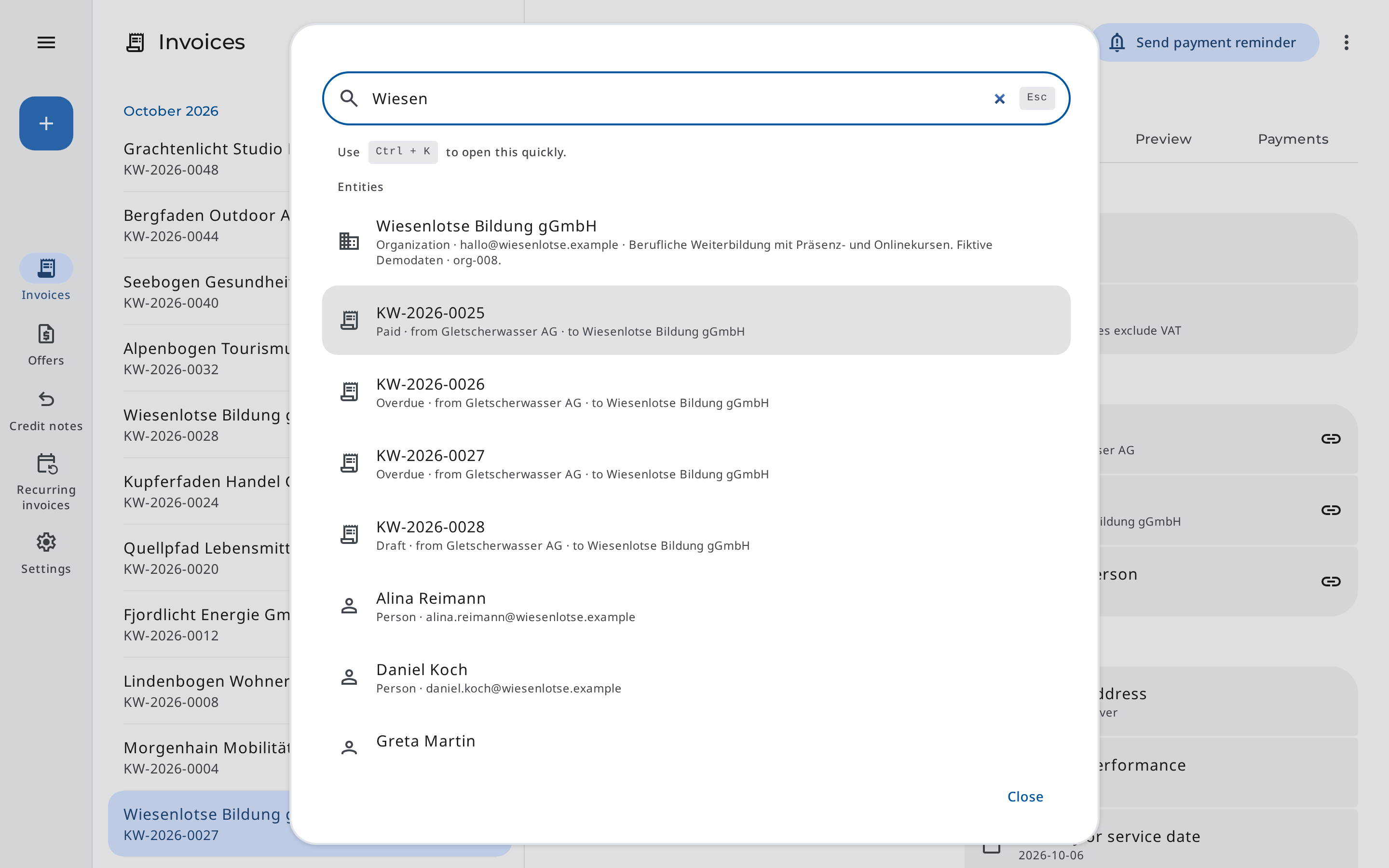
Command palette
Press «Ctrl + K» or «Cmd + K» to open the command palette. There you find areas, documents, organizations, and people and select them with the arrow keys.
Visible focus
A clear outline shows where you are. Buttons that only show an icon display their label when you reach them with the keyboard, too.
Select fields & dialogs
You operate select fields with the arrow keys and Enter. Press Escape to close dialogs and the command palette.
Text editor
The editor for text sections and emails works entirely with the keyboard. Its buttons are labeled and show whether a format is active.
Motion, zoom & selection
Less motion
If your device asks for less motion, the navigation, lists, and details change without transition animations.
Zoom
When you zoom in the browser, Erdikon rearranges the content for the narrower width instead of cutting it off at the side. On your phone, you zoom with two fingers.
Not just color
In selection menus, a check mark marks the selected option in addition to its color.
Five languages
The Erdikon interface is available in German, English, French, Italian, and Spanish. Every team member chooses their language under «My account» › «Change language».
Quotes and invoices have their own «Language». Fixed labels such as «Invoice number» or «Due date» appear in that language in the PDF, while your own texts stay as you wrote them. On their personal quote and invoice pages, customers choose the language themselves.
Available languages
- German
- English
- French
- Italian
- Spanish
Screenshots
Screenshots of the English interface with fictional sample data, captured on November 4, 2026.
In all applications
Contrast, theme, and keyboard support apply to all Erdikon applications and modules.
Invoicing
Work on quotes, invoices, and payments with the contrast that suits you.
Learn moreProjects
Find and open projects with the command palette.
Learn moreProject Time
Start a timer or add past time straight from the command palette.
Learn moreMaster Data
Find organizations and contacts with the command palette.
Learn moreSnippets
Write and insert recurring texts in the editor with the keyboard.
Learn more