Command palette
Find invoices, projects & contacts with the command palette
Press «Ctrl + K» or «Cmd + K» to open the command palette on any page. Type a name or a number and open the result, create an invoice, or start a timer without taking your hands off the keyboard.
Free for up to two users. No credit card required.
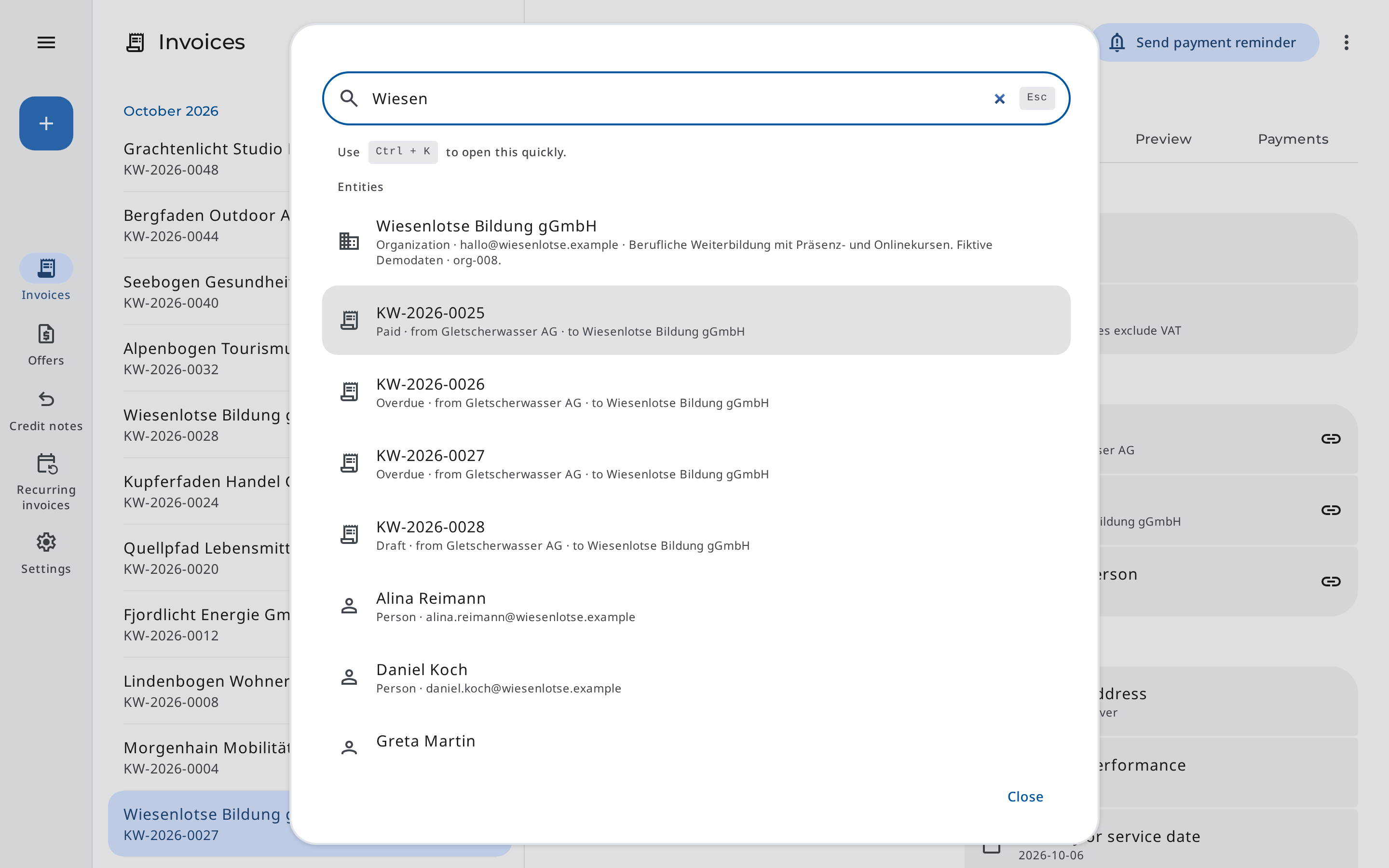
Search invoices, projects & master data
When someone calls about an invoice, type the name of their company. The command palette shows the organization together with the invoices addressed to it, each with a status such as «Paid» or «Overdue».
The search covers names and numbers, the sender and recipient of invoices, and the customer and internal lead of projects. You also find organizations and people by their email address and phone number.
What you can find
- Invoices & credit notes
- Projects
- Organizations & people
- Products & services
- VAT rates
- Snippets
Create invoices, projects & time entries
Under «Create», the command palette opens the matching form right on the page you are working on.
Invoices & projects
«New invoice» creates an invoice draft, and «New project» creates a project.
Timer & past time
«Start timer» starts tracking your time, and «Add past time» adds time you forgot to record.
Master data
Add organizations, people, products, and services without opening master data first.
Snippets
«New snippet» saves a text you need again and again, so you can insert it into quotes, invoices, and emails later.
Recent pages & settings
To get back to the invoice you edited a few minutes ago, open the command palette. Your recently visited pages appear at the top, and you can search them too.
You also open applications, lists, and settings by their name, without knowing where they are in the menu. Type «Pay», for example, and the payment details and payment terms of Invoicing appear.
One search away
- Recently visited pages
- Applications & modules
- Credit notes & recurring invoices
- Payment details & payment terms
- Email templates
- Your other Spaces
Keyboard, mouse & permissions
Keyboard only
«Ctrl + K» or «Cmd + K» opens the command palette, the arrow keys choose a result, Enter opens it, and Escape closes the command palette. While you are typing in a field, the shortcut does nothing.
With a click, too
With the mouse, open the command palette with the «Command palette» item in the navigation bar.
Only what you may open
The command palette only shows applications and commands you have permission for in the Space. If you can only read, no create commands appear.
Frequently asked questions
Does the command palette search all Spaces?
No, only the Space you are working in. To find invoices or projects in another Space, switch Spaces right in the command palette.
Do I see my recent pages on all devices?
No. Erdikon keeps them in your browser, separately for each account. On another device or in another browser, the list starts empty.
Is the command palette included in the Free plan?
Yes, in all plans, in the Erdikon cloud and on your own infrastructure.
Used in
Invoicing
Open an invoice by its number or create a new invoice draft.
Learn moreProjects
Open a project by its number or create a new one.
Learn moreProject time
Start the timer without leaving the page you are working on.
Learn moreMaster data
Find a contact by their email address or add a new organization.
Learn more