Expenses
Record & report expenses with their receipts
Whether it's a till receipt, a team member's expense claim, or a supplier's invoice, Expenses records what your organization spends, with its receipt, VAT, and category. You bill a project's expenses together with its time.
Free for up to two users. No credit card required.
From receipt to report
- Record the expense You choose free text or a product from master data, which brings its designation, price, and VAT.
- Attach the receipt You upload the till receipt or the supplier's invoice as a file to the expense.
- Pay Erdikon shows what is still unpaid and which expense claims are waiting to be reimbursed.
- Report Reports sum the expenses of a year, quarter, or month.
Receipts & VAT as on the receipt
You enter the amount as the receipt states it, net or including VAT. Besides the VAT rate, you record the receipt's exact VAT amount. Without it, Erdikon calculates the amount from the rate.
If a receipt lists items with different VAT rates or categories, you record them as several expenses. You upload the receipt only once and reuse it for the other expenses with «Use a receipt of another expense».
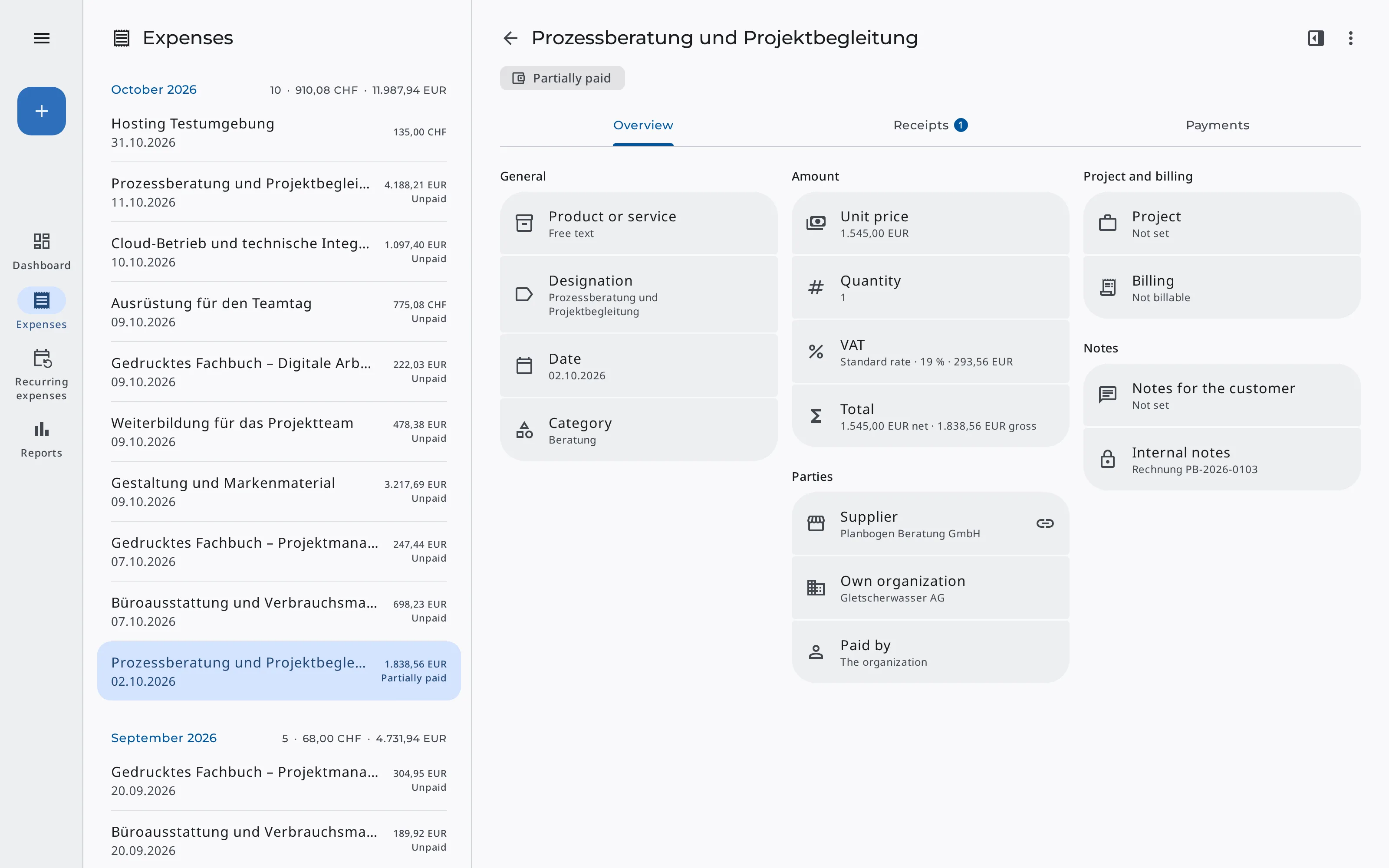
Each expense records
- Date & supplier
- Amount, VAT rate & VAT amount
- Category
- Who paid it
- Any number of receipts
Open payments, expense claims & recurring expenses
Unpaid supplier invoices
You record an invoice that is due in 30 days as unpaid. You add payments and partial payments later, and the list shows what is still open.
Team members' expense claims
If someone on the team paid out of pocket, you choose them under «Paid by». Until you enter the day of the reimbursement, the list shows «To reimburse».
Recurring expenses
Erdikon records hosting or rent daily, weekly, monthly, quarterly, or yearly on its own until you pause or end the recurring expense.
Project expenses
A project's expenses go onto the invoice together with its time. Non-billable ones count as effort in the post calculation.
Reports by category, VAT rate & supplier
For your VAT return or tax return, you need the totals of a period. Reports sum the expenses of a year, quarter, or month with their number and their net, VAT, and gross amounts. You see the same totals broken down by category, VAT rate, and supplier.
The list shows the expenses by month with their totals. You filter it by year, project, category, supplier, and status. Expenses keep their own currency. The totals are in your organization's currency, converted at the exchange rate of each expense's month; a month without a rate stays on its own line.
Reports show
- Number of expenses
- Net, VAT & gross
- By category
- By VAT rate
- By supplier
- In your organization's currency
You can find out how Erdikon converts foreign currencies on the page «Convert foreign currencies for the VAT return».
Working with AI assistants
Through the Model Context Protocol (MCP), AI assistants record expenses for you. Give your assistant a receipt, and it records the expense and keeps the file as its receipt. It adds payments, sets up recurring expenses, and tells you what is still open.
The assistants always act with your permissions. The connection is included in the Pro and Unlimited plans.
Example requests
«Record this receipt as an expense of the Website Relaunch project and attach it.»
«Which supplier invoices are still unpaid?»
You can find out what else AI assistants can do in Erdikon on the page «AI Assistants».
Frequently asked questions
Do I need Projects to record expenses?
No. You record expenses without a project, such as office supplies or rent, directly in Expenses. Only a project's expenses are billed to customers.
Can I still change a billed expense?
Partly. The date, designation, amount, quantity, and notes for the customer stay as the invoice shows them. You can still change the supplier, category, receipts, and payments. A billed expense can't be deleted.
Can I record expenses on the go?
Yes. Erdikon offers all its features on a smartphone. If you installed Erdikon as an app, you open «Record expense» straight from the app icon, depending on your device and browser.
Who can see the expenses?
Permissions for Expenses apply per Space. People who can read see all expenses of the Space, including those of projects. People who can write record and change them.
Part of the Erdikon platform
Projects
You bill a project's expenses with its time and compare them with the quote in the post calculation.
Learn moreMaster Data
Suppliers, products, services, expense categories, and the exchange rates for the totals come from the shared master data.
Learn moreWebhooks
Erdikon automatically reports new, changed, and billed expenses to other software.
Learn moreMobile & Desktop
You record expenses on your smartphone on the go and review them later at your desk.
Learn more